Hi,
when using a evaluation license, the online function in upgrades is disabled.
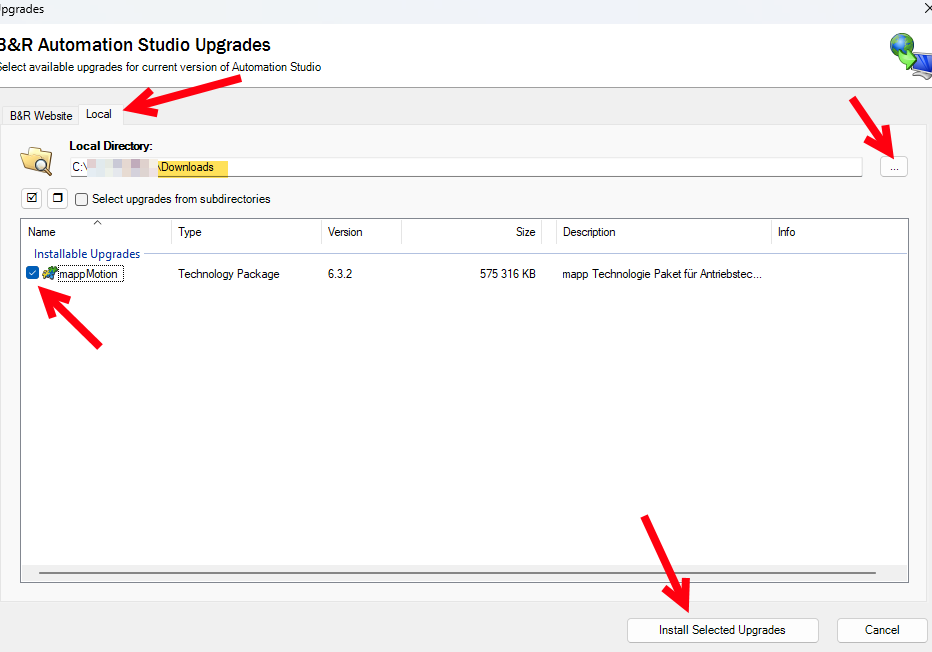
You have to download the needed packages from the website and store it locally. After that, you have to open the local section in upgrades Dialog, and browser to the folder where the downloads packages are stored → then you’re able to select those packages and start the upgrade process.
After installation has succeeded, you’re able to select the package in runtime versions.
For example, the mappMotion package should be installed:
Download from website:

After download, it’s available on your local harddrive:

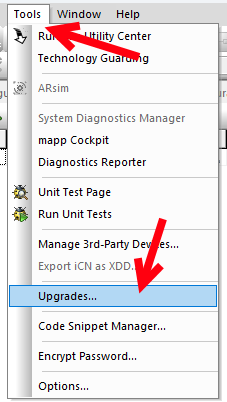
In Automation Studio, open tools → upgrades:
Navigate to Local, choose your download directory → the package should be showed → select the package, start Install Selected Upgrades:
A Windows message will appear, accept it and select Start Installation in the following popup:

If you need more the one update, I recommend to download all updates first before starting Tools → Upgrades, then you can select and install all upgrades with one step.
Best regards!