Does anyone succesfully use Virtual machine with Win10+AS4.x+HW dongle with Oracle Virtual Box hosting on Windows 10?
Win10 + AS4, I have used without problem. HW Dongle I have not tested, but it is USB stick, so should be ok as well.
I can only speak for VMWare Pro and here I assign the “USB Stick” to the guest system and it works just file
It seems that with VirtualBox i cmstick doesnt pass to through:-(
I remember that there was some extra settings, but I have not stored it
This is what chatGPT says about, Im sure you have already asked it but maybe there will be some point which will help.
 Install VirtualBox Extension Pack (mandatory)
USB 2.0 / USB 3.0 will NOT work without the Extension Pack.
Steps
- Check your VirtualBox version
2.Help → About VirtualBox* - Download the matching Extension Pack
→ Downloads – Oracle VirtualBox - Install it:
- File → Tools → Extensions
- Click +
- Select the downloaded
.vbox-extpack
- Restart VirtualBox
 Version must match exactly (e.g. 7.0.14 + 7.0.14 pack)
 Add USB support to the VM
Your VM must be powered off.
Steps
- Select VM → Settings
- Go to USB
- Enable:
 Enable USB Controller
- Select:
- USB 2.0 (EHCI) → most CmSticks
- or USB 3.0 (xHCI) → if required

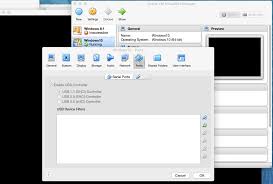
 Create a USB filter for the CmStick (IMPORTANT)
Without a filter, the host OS will keep the dongle.
Steps
- VM Settings → USB
- Click
 Add new USB filter
 - Select your CmStick
(often shown as WIBU-SYSTEMS, CodeMeter, or similar)
VirtualBox auto-fills:
- Vendor ID
- Product ID
- Manufacturer
This ensures the dongle is captured by the VM automatically


 Remove the CmStick from the host OS (if needed)
Windows host
- Close CodeMeter Control Center
- Or temporarily stop CodeMeter service
Linux host
sudo systemctl stop codemeter
Host and guest cannot use the dongle at the same time
 Start the VM and verify USB connection
- Start VM
- VM menu → Devices → USB
- Ensure CmStick is checked
If unchecked → click it manually
 Install CodeMeter inside the VM
Inside the guest OS:
- Install CodeMeter Runtime
- Open CodeMeter Control Center
- Verify:
- CmStick visible
- License detected
 Common problems & fixes
 CmStick not visible
 Extension Pack missing or wrong version
USB filter missing
Host service still using the dongle
“Failed to attach USB device”
Run VirtualBox as Administrator (Windows)
Try USB 2.0 instead of USB 3.0
Reinsert dongle after VM starts
Hi @Vratislav,
just as a side note:
Be aware that when using the Oracle VirtualBox Extension Pack for commercial use-cases, you need a licence for that.
More details can be found for example here:
Best regards!
tried with chatgpt, but not sucesfull.
I know, first try that dongle works and then use commercial with licence. But it doesnt work, so VirtualBox is unusable for now.
Unfortunately I can’t test anything as I haven’t VirtualBox installed, but one last info maybe worth to share?
The 1TG dongles can be of type “mass storage device (msd)” or of type “human interface device (hid)”, depending on the order code:
but the USB device type can be changed by software - maybe it’s worth a try to check if a MSD and a HID device behave different?
To change the device type, you need to open the “CodeMeter Command Prompt” and call the tool “cmu32”.
To set the dongle to Mass Storage Device:
cmu32 /s <Serialnumber> --set-config-disk MsdCommunication
To set the dongle to Human Interface Device:
cmu32 /s <Serialnumber> --set-config-disk HidCommunication
Serialnumber is the number printed on the dongle, for example:
cmu32 /s 2-1234567 --set-config-disk MsdCommunication

The Codemeter Command Prompt can be found in “Windows start menu → All → CodeMeter → Codemeter Command Prompt”:

After changing the device type, the device has to be unplugged and plugged again.
For example with the Windows tool “USBDeview” you can check the device type. Before and after changing it, for example it could look like:


Best regards!
Hi @Vratislav , have you found solution for your issue? can you update us?
I solved issue by using VMware 17 instead of VirtualBox.
thanks for update 